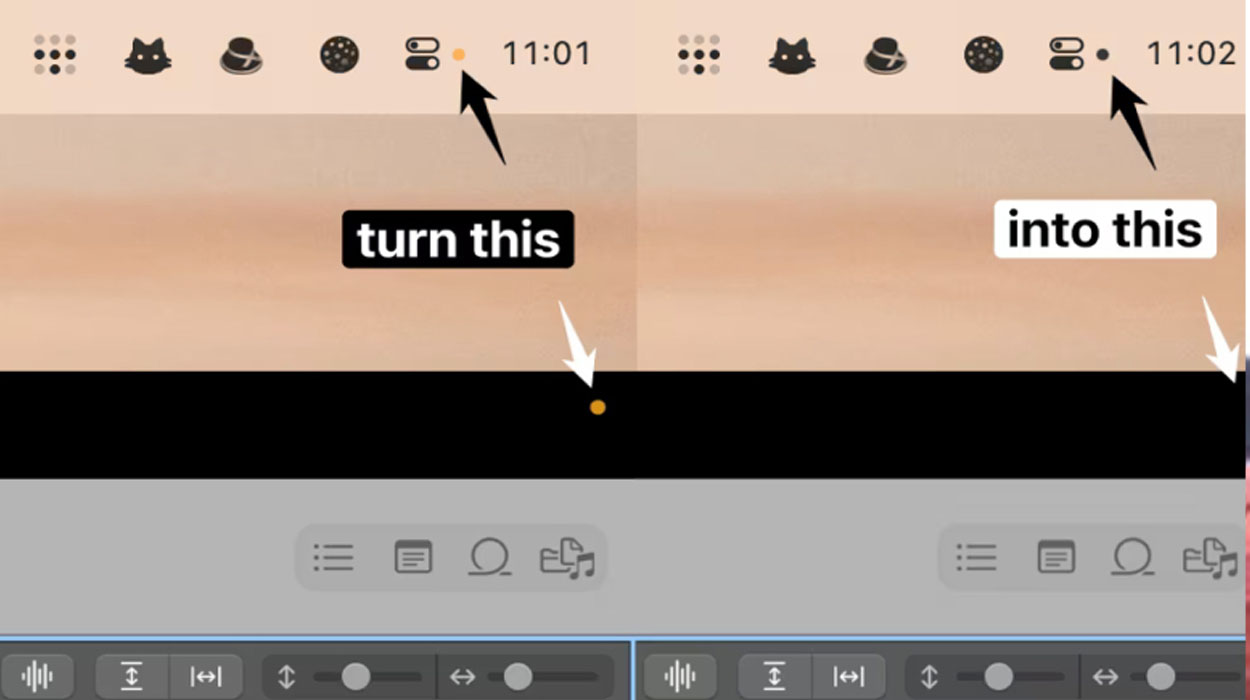
How to Remove the Yellow Dot on Your Mac Without Compromising Your Privacy
Introduction
If you’ve recently noticed a small yellow or orange dot appearing in the corner of your Mac screen, you’re not alone. This feature, introduced by Apple, is designed to protect your privacy by alerting you whenever an app is using your microphone. While it’s a useful security feature, many users find it distracting—especially when it appears frequently during meetings, recordings, or even casual browsing.
The good news? You don’t have to choose between a clean screen and your privacy. There are smart ways to manage or minimize the yellow dot without turning off the very protections that keep your data safe.
What Is the Yellow Dot on Mac?
The yellow (or orange) dot is a privacy indicator that shows when your microphone is in use. It’s part of Apple’s broader effort to give users more transparency and control over their devices.
- Yellow/Orange dot: Microphone is active
- Green dot (on some devices): Camera is active
This means anytime an app is listening—whether it’s a video call, voice note, or background process—you’ll see the indicator.
Why You Shouldn’t Disable It Completely
It might be tempting to get rid of the dot entirely, but that’s not recommended. The indicator acts as a real-time warning system against:
- Unauthorized app access
- Background recording
- Potential spyware or malicious software
Turning it off completely (if even possible through unofficial means) could leave you vulnerable without knowing when your microphone is being used.
Smart Ways to Hide or Reduce the Yellow Dot
Instead of removing the feature, here are safer and more practical alternatives:
1. Manage App Permissions
Go through your microphone permissions and only allow trusted apps to access it.
Steps:
- Open System Settings
- Go to Privacy & Security
- Click Microphone
- Toggle off apps you don’t trust or rarely use
This reduces how often the dot appears in the first place.
2. Close Background Apps
Many apps continue using your microphone even when you’re not actively using them.
- Quit unused apps
- Check Activity Monitor for hidden processes
- Avoid leaving meeting apps open unnecessarily
Less background activity = fewer yellow dots.
3. Use Focus Modes or Full-Screen Apps
While this doesn’t remove the dot, it can make it less noticeable.
- Enable Focus Mode to reduce distractions
- Use full-screen mode when working or watching content
This keeps your attention away from the indicator.
4. Choose Apps With Better Privacy Controls
Some apps activate the microphone unnecessarily. Switching to more privacy-conscious alternatives can help reduce how often the dot appears.
Look for apps that:
- Only use the mic when needed
- Clearly notify you before access
- Offer manual control over recording
5. Keep Your Mac Updated
Apple occasionally improves how privacy indicators behave.
- Install the latest macOS updates
- Check release notes for privacy improvements
Updates can make the feature less intrusive while keeping it effective.
What You Should Avoid
- Third-party hacks or scripts claiming to remove the dot
- Disabling system protections through risky methods
- Ignoring the indicator entirely
These approaches can compromise your security and defeat the purpose of the feature.
Final Thoughts
The yellow dot on your Mac is there for a good reason—it’s a simple but powerful privacy tool. While it might feel intrusive at times, it’s better to manage how often it appears rather than trying to eliminate it completely.
By controlling app permissions, closing unnecessary programs, and using smarter workflows, you can enjoy a cleaner screen without putting your privacy at risk.